/Custom sections and dev
Shopify FAQ section: 3 free copy-paste designs (and the code)
August 15, 2026 · WOCX
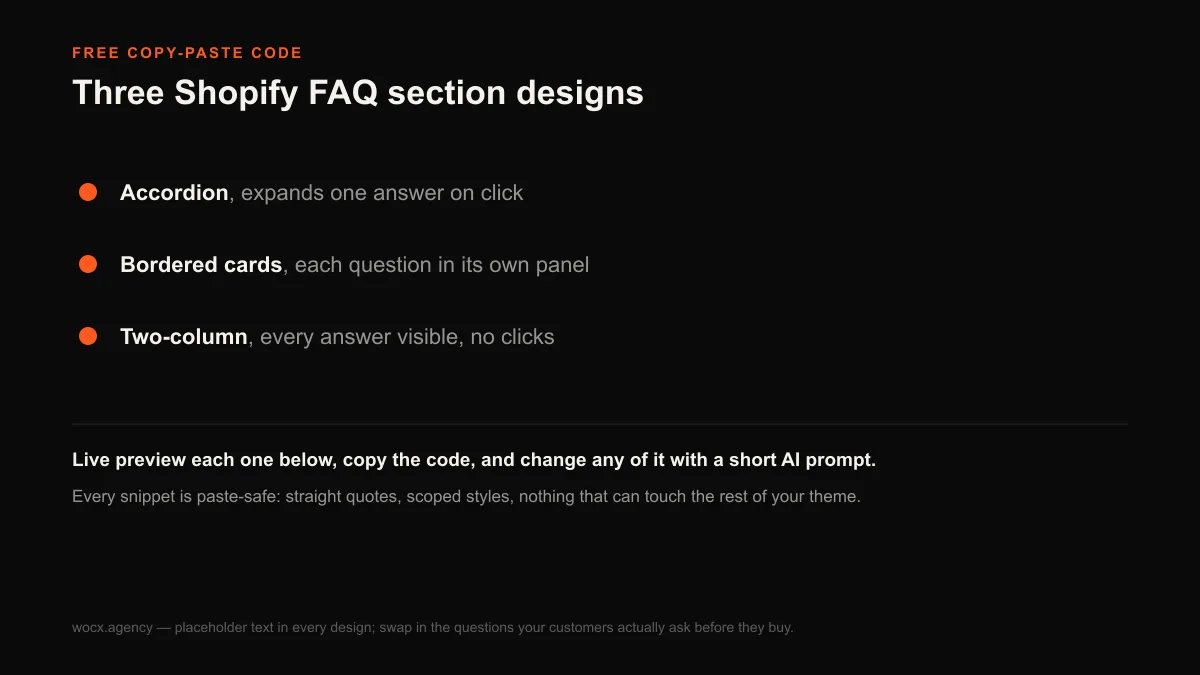
A FAQ section is the quietest salesperson on your Shopify store. It answers the question that would otherwise send a ready-to-buy customer off to a competitor, and it does it right where the doubt lives, without you lifting a finger once it is built. This page gives you three of them free: an accordion, a bordered-card layout, and a two-column grid. You can see each one running below, copy the code, drop it into your store, and change any of it with a short AI prompt even if you have never touched Liquid.
Everything here is built to survive the copy-paste. Every snippet uses straight quotes, no external fonts, and styles scoped to the section itself, so pasting one in cannot reach out and reshape the rest of your theme. Swap the placeholder questions for the ones your customers actually ask, and you have a working FAQ in a couple of minutes.
What a Shopify FAQ section actually does
A FAQ section is a block of questions and answers you add to a page in your theme, usually as an accordion that expands one answer at a time or as a simple list with everything visible. On a Shopify store it does two jobs at once, and both of them make you money. The first is conversion: it removes the last hesitation before checkout by answering the objection a shopper has right now, on the page they are already looking at, instead of making them hunt for a separate help page or, worse, leave to search. The second is trust: a store that openly answers the awkward questions about shipping, returns and fit reads as more honest than one that hides them, and honesty is what turns a first-time visitor into a buyer.
There is a third job that matters more every month. A well-structured FAQ is one of the few sections that can get your answer quoted directly inside an AI search result, because AI answer engines lift clear, self-contained question-and-answer pairs far more readily than they lift a paragraph that buries its point. That means a good FAQ can earn you visibility on top of the click, which is rare and getting rarer.
The three designs
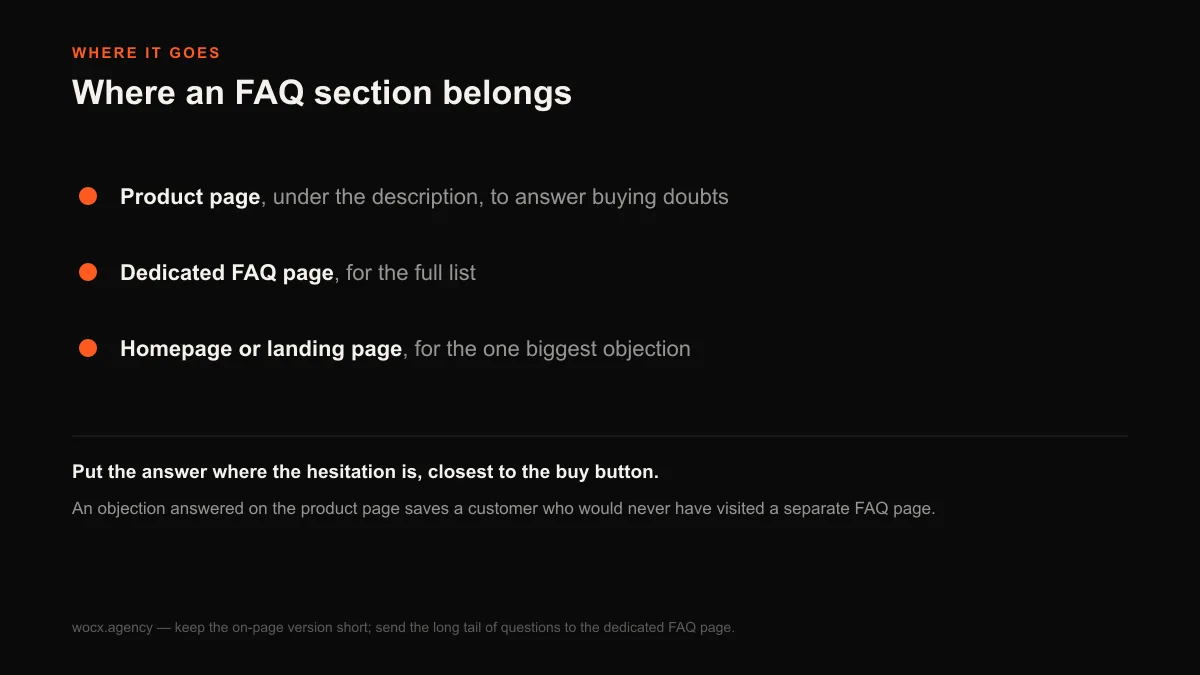
All three are free, all three run live below in both desktop and mobile, and all three ship with placeholder text you replace. They are not three skins of the same thing: each suits a different length of FAQ and a different amount of page you are willing to give it. Pick by how many questions you have and how much room they need.
Design 1: the accordion
The classic. Questions sit in a clean list, and clicking one expands its answer while the others stay closed, so a long FAQ stays short on the page. It is the safest default: it never overwhelms, it works on any screen, and it is the layout shoppers already know how to use. Reach for it when you have more than four or five questions.
Copy the block below, paste it into a Custom Liquid section, then swap the placeholder questions for your own.
<section class="wfaq-section">
  <style>
    .wfaq-section, .wfaq-section *, .wfaq-section *::before, .wfaq-section *::after { box-sizing: border-box; }
    .wfaq-section {
      --wfaq-accent: #1f6feb;
      --wfaq-ink: #10131a;
      --wfaq-muted: #5c6472;
      --wfaq-line: #e8eaef;
      font-family: -apple-system, BlinkMacSystemFont, "Segoe UI", Roboto, Helvetica, Arial, sans-serif;
      max-width: 780px; margin: 0 auto; color: var(--wfaq-ink);
    }
    .wfaq-head { text-align: center; margin-bottom: 30px; }
    .wfaq-eyebrow {
      display: inline-block; font-size: 12px; font-weight: 700; letter-spacing: 1.6px;
      text-transform: uppercase; color: var(--wfaq-accent); margin-bottom: 10px;
    }
    .wfaq-title { font-size: 30px; font-weight: 750; margin: 0 0 8px; letter-spacing: -0.025em; line-height: 1.2; }
    .wfaq-sub { font-size: 15.5px; color: var(--wfaq-muted); margin: 0; }

    .wfaq-item {
      position: relative; border: 1px solid var(--wfaq-line); border-radius: 14px;
      margin-bottom: 10px; background: #fff; overflow: hidden;
      transition: border-color .3s ease, box-shadow .3s ease, transform .3s ease;
    }
    .wfaq-item::before {
      content: ""; position: absolute; left: 0; top: 0; bottom: 0; width: 3px;
      background: var(--wfaq-accent); transform: scaleY(0); transform-origin: top;
      transition: transform .35s cubic-bezier(.4,0,.2,1);
    }
    .wfaq-item.is-open { border-color: #d3dbe8; box-shadow: 0 10px 30px rgba(16,19,26,.07); }
    .wfaq-item.is-open::before { transform: scaleY(1); }

    .wfaq-q {
      width: 100%; background: none; border: 0; cursor: pointer; font-family: inherit;
      display: flex; align-items: center; gap: 14px;
      padding: 19px 22px; font-size: 16.5px; font-weight: 650; color: var(--wfaq-ink); text-align: left;
      line-height: 1.45;
    }
    .wfaq-num {
      flex: 0 0 auto; width: 27px; height: 27px; border-radius: 8px;
      background: #f1f4f9; color: var(--wfaq-muted);
      font-size: 12.5px; font-weight: 700; display: flex; align-items: center; justify-content: center;
      transition: background .3s ease, color .3s ease;
    }
    .wfaq-item.is-open .wfaq-num { background: var(--wfaq-accent); color: #fff; }
    .wfaq-qtext { flex: 1 1 auto; }
    .wfaq-icon { flex: 0 0 auto; width: 20px; height: 20px; position: relative; }
    .wfaq-icon::before, .wfaq-icon::after {
      content: ""; position: absolute; top: 50%; left: 50%; transform: translate(-50%,-50%);
      background: var(--wfaq-muted); border-radius: 2px; transition: transform .35s cubic-bezier(.4,0,.2,1), background .3s ease;
    }
    .wfaq-icon::before { width: 13px; height: 2px; }
    .wfaq-icon::after { width: 2px; height: 13px; }
    .wfaq-item.is-open .wfaq-icon::before,
    .wfaq-item.is-open .wfaq-icon::after { background: var(--wfaq-accent); }
    .wfaq-item.is-open .wfaq-icon::after { transform: translate(-50%,-50%) rotate(90deg); }

    .wfaq-a { overflow: hidden; height: 0; transition: height .35s cubic-bezier(.4,0,.2,1); }
    .wfaq-a-inner {
      padding: 0 22px 21px 63px; font-size: 15.5px; line-height: 1.68; color: var(--wfaq-muted);
    }
    @media (max-width: 600px) {
      .wfaq-title { font-size: 25px; }
      .wfaq-q { padding: 17px 16px; font-size: 15.5px; gap: 11px; }
      .wfaq-a-inner { padding: 0 16px 19px 16px; font-size: 15px; }
    }
    @media (prefers-reduced-motion: reduce) {
      .wfaq-item, .wfaq-item::before, .wfaq-a, .wfaq-num,
      .wfaq-icon::before, .wfaq-icon::after { transition: none; }
    }
  </style>

  <div class="wfaq-head">
    <span class="wfaq-eyebrow">Before you buy</span>
    <h2 class="wfaq-title">Frequently asked questions</h2>
    <p class="wfaq-sub">Everything customers ask before they check out.</p>
  </div>

  <div class="wfaq-list">
    <div class="wfaq-item is-open">
      <button class="wfaq-q" type="button" aria-expanded="true">
        <span class="wfaq-num">01</span>
        <span class="wfaq-qtext">First question goes here, kept short and clear</span>
        <span class="wfaq-icon"></span>
      </button>
      <div class="wfaq-a"><div class="wfaq-a-inner">Answer the question directly in the first sentence, then add the detail. This placeholder text shows how a full answer sits inside the panel so you can judge the spacing before you swap in your own copy.</div></div>
    </div>
    <div class="wfaq-item">
      <button class="wfaq-q" type="button" aria-expanded="false">
        <span class="wfaq-num">02</span>
        <span class="wfaq-qtext">Second question, phrased the way a customer would ask it</span>
        <span class="wfaq-icon"></span>
      </button>
      <div class="wfaq-a"><div class="wfaq-a-inner">Keep each answer to two or three sentences. Lead with the answer, handle the objection, and stop.</div></div>
    </div>
    <div class="wfaq-item">
      <button class="wfaq-q" type="button" aria-expanded="false">
        <span class="wfaq-num">03</span>
        <span class="wfaq-qtext">Third question about shipping, returns, or fit</span>
        <span class="wfaq-icon"></span>
      </button>
      <div class="wfaq-a"><div class="wfaq-a-inner">The most-asked questions belong at the top. Swap this dummy text for the answer your customers actually need before they buy.</div></div>
    </div>
    <div class="wfaq-item">
      <button class="wfaq-q" type="button" aria-expanded="false">
        <span class="wfaq-num">04</span>
        <span class="wfaq-qtext">Fourth question that removes the last hesitation</span>
        <span class="wfaq-icon"></span>
      </button>
      <div class="wfaq-a"><div class="wfaq-a-inner">A good FAQ answers the reason someone would leave without buying. Replace this with the objection you hear most often.</div></div>
    </div>
  </div>

  <script>
    (function () {
      var root = document.currentScript.closest(".wfaq-section");
      var items = root.querySelectorAll(".wfaq-item");
      items.forEach(function (item) {
        var q = item.querySelector(".wfaq-q");
        var a = item.querySelector(".wfaq-a");
        var inner = item.querySelector(".wfaq-a-inner");
        if (item.classList.contains("is-open")) a.style.height = inner.offsetHeight + "px";
        q.addEventListener("click", function () {
          var open = item.classList.contains("is-open");
          items.forEach(function (other) {
            if (other === item) return;
            other.classList.remove("is-open");
            other.querySelector(".wfaq-q").setAttribute("aria-expanded", "false");
            other.querySelector(".wfaq-a").style.height = "0px";
          });
          item.classList.toggle("is-open", !open);
          q.setAttribute("aria-expanded", String(!open));
          a.style.height = (open ? 0 : inner.offsetHeight) + "px";
        });
      });
      window.addEventListener("resize", function () {
        items.forEach(function (item) {
          if (!item.classList.contains("is-open")) return;
          item.querySelector(".wfaq-a").style.height = item.querySelector(".wfaq-a-inner").offsetHeight + "px";
        });
      });
    })();
  </script>
</section>
Design 2: the bordered cards
The same accordion behaviour, but each question sits in its own rounded, bordered panel that lifts slightly when it opens. It feels a little more designed and a little more premium, and the separation between cards makes a medium-length FAQ easy to scan. Use it when the FAQ is a feature of the page rather than a footnote to it.
<section class="wfaqb-section">
  <style>
    .wfaqb-section, .wfaqb-section *, .wfaqb-section *::before, .wfaqb-section *::after { box-sizing: border-box; }
    .wfaqb-section {
      font-family: -apple-system, BlinkMacSystemFont, "Segoe UI", Roboto, Helvetica, Arial, sans-serif;
      max-width: 760px; margin: 0 auto; color: #16181d;
    }
    .wfaqb-title { font-size: 26px; font-weight: 700; margin: 0 0 20px; text-align: center; letter-spacing: -0.02em; }
    .wfaqb-item {
      border: 1px solid #e4e6ea; border-radius: 12px; margin-bottom: 12px; overflow: hidden;
      transition: border-color .25s ease, box-shadow .25s ease; background: #fff;
    }
    .wfaqb-item.is-open { border-color: #c7ccd4; box-shadow: 0 6px 20px rgba(20,24,29,.06); }
    .wfaqb-q {
      width: 100%; background: none; border: 0; cursor: pointer; font-family: inherit;
      display: flex; align-items: center; justify-content: space-between; gap: 16px;
      padding: 18px 20px; font-size: 16.5px; font-weight: 600; color: #16181d; text-align: left;
    }
    .wfaqb-chev { flex: 0 0 auto; width: 20px; height: 20px; transition: transform .3s ease; color: #6b7280; }
    .wfaqb-item.is-open .wfaqb-chev { transform: rotate(180deg); }
    .wfaqb-a { overflow: hidden; height: 0; transition: height .3s ease; }
    .wfaqb-a-inner { padding: 0 20px 20px; font-size: 15.5px; line-height: 1.65; color: #5b616b; }
    @media (prefers-reduced-motion: reduce) { .wfaqb-a, .wfaqb-chev, .wfaqb-item { transition: none; } }
  </style>

  <h2 class="wfaqb-title">Questions, answered</h2>

  <div class="wfaqb-list">
    <div class="wfaqb-item is-open">
      <button class="wfaqb-q" type="button" aria-expanded="true">
        First question goes here, kept short and clear
        <svg class="wfaqb-chev" viewBox="0 0 24 24" fill="none" aria-hidden="true"><path d="M6 9l6 6 6-6" stroke="currentColor" stroke-width="2" stroke-linecap="round" stroke-linejoin="round"/></svg>
      </button>
      <div class="wfaqb-a"><div class="wfaqb-a-inner">Answer the question directly in the first sentence, then add the detail.</div></div>
    </div>
    <div class="wfaqb-item">
      <button class="wfaqb-q" type="button" aria-expanded="false">
        Second question, phrased the way a customer asks it
        <svg class="wfaqb-chev" viewBox="0 0 24 24" fill="none" aria-hidden="true"><path d="M6 9l6 6 6-6" stroke="currentColor" stroke-width="2" stroke-linecap="round" stroke-linejoin="round"/></svg>
      </button>
      <div class="wfaqb-a"><div class="wfaqb-a-inner">Keep each answer to 2 or 3 sentences.</div></div>
    </div>
    <div class="wfaqb-item">
      <button class="wfaqb-q" type="button" aria-expanded="false">
        Third question about shipping, returns, or fit
        <svg class="wfaqb-chev" viewBox="0 0 24 24" fill="none" aria-hidden="true"><path d="M6 9l6 6 6-6" stroke="currentColor" stroke-width="2" stroke-linecap="round" stroke-linejoin="round"/></svg>
      </button>
      <div class="wfaqb-a"><div class="wfaqb-a-inner">Put the most-asked questions at the top.</div></div>
    </div>
  </div>

  <script>
    (function () {
      var root = document.currentScript.closest(".wfaqb-section");
      root.querySelectorAll(".wfaqb-item").forEach(function (item) {
        var q = item.querySelector(".wfaqb-q");
        var a = item.querySelector(".wfaqb-a");
        var inner = item.querySelector(".wfaqb-a-inner");
        if (item.classList.contains("is-open")) a.style.height = inner.offsetHeight + "px";
        q.addEventListener("click", function () {
          var open = item.classList.contains("is-open");
          item.classList.toggle("is-open", !open);
          q.setAttribute("aria-expanded", String(!open));
          a.style.height = (open ? 0 : inner.offsetHeight) + "px";
        });
      });
    })();
  </script>
</section>
Design 3: the two-column grid
No clicking at all. Every question and answer is visible in a tidy two-column grid that collapses to one column on mobile. It is the right choice for a short FAQ of 4 to 6 questions, because when the list is short, showing every answer at once beats hiding them behind a click and costs the shopper nothing.
<section class="wfaq2-section">
  <style>
    .wfaq2-section, .wfaq2-section *, .wfaq2-section *::before, .wfaq2-section *::after { box-sizing: border-box; }
    .wfaq2-section {
      font-family: -apple-system, BlinkMacSystemFont, "Segoe UI", Roboto, Helvetica, Arial, sans-serif;
      max-width: 860px; margin: 0 auto; color: #1a1a1a;
    }
    .wfaq2-title { font-size: 26px; font-weight: 700; margin: 0 0 6px; letter-spacing: -0.02em; }
    .wfaq2-sub { font-size: 15px; color: #6b7280; margin: 0 0 26px; }
    .wfaq2-grid { display: grid; grid-template-columns: 1fr 1fr; gap: 26px 40px; }
    .wfaq2-q { font-size: 16px; font-weight: 600; margin: 0 0 8px; display: flex; gap: 10px; align-items: flex-start; }
    .wfaq2-q::before { content: "Q"; flex: 0 0 auto; width: 24px; height: 24px; border-radius: 50%; background: #1a1a1a; color: #fff; font-size: 13px; font-weight: 700; display: flex; align-items: center; justify-content: center; }
    .wfaq2-item p { margin: 0; font-size: 15px; line-height: 1.6; color: #565b63; padding-left: 34px; }
    @media (max-width: 640px) { .wfaq2-grid { grid-template-columns: 1fr; gap: 22px; } }
  </style>

  <h2 class="wfaq2-title">Frequently asked questions</h2>
  <p class="wfaq2-sub">Everything a customer might want to know before they check out.</p>

  <div class="wfaq2-grid">
    <div class="wfaq2-item">
      <div class="wfaq2-q">First question goes here, kept short</div>
      <p>Lead with the answer in the first sentence, then add a line of detail.</p>
    </div>
    <div class="wfaq2-item">
      <div class="wfaq2-q">Second question a customer would ask</div>
      <p>2 to 3 sentences is plenty. Handle the objection and stop.</p>
    </div>
    <div class="wfaq2-item">
      <div class="wfaq2-q">Third question about shipping or returns</div>
      <p>The most-asked questions belong first.</p>
    </div>
    <div class="wfaq2-item">
      <div class="wfaq2-q">Fourth question that removes hesitation</div>
      <p>A good FAQ answers the reason someone would leave without buying.</p>
    </div>
  </div>
</section>
Which FAQ design should you use?
The choice comes down to two questions: how many questions you have, and how much of the page you want the FAQ to take. A long list belongs in an accordion or bordered cards, where collapsing the answers keeps the page short and the shopper in control; a short list is better shown in full in the two-column grid, because a click you make someone perform to read three lines is friction with no payoff. If you are unsure, start with the accordion. It is the most forgiving of both long and short copy, it reads as calm and familiar, and you can move your questions to another design later, since all three use the same kind of content and swapping is a copy-and-paste job, not a rebuild.
| Design | Best for | Interaction |
|---|---|---|
| Accordion | Longer FAQs, 5+ questions | Click to expand one at a time |
| Bordered cards | A medium FAQ you want to feature | Click to expand, cards lift |
| Two-column | Short FAQs, 4–6 questions | None, all answers visible |
How to add a FAQ section to your store, two ways
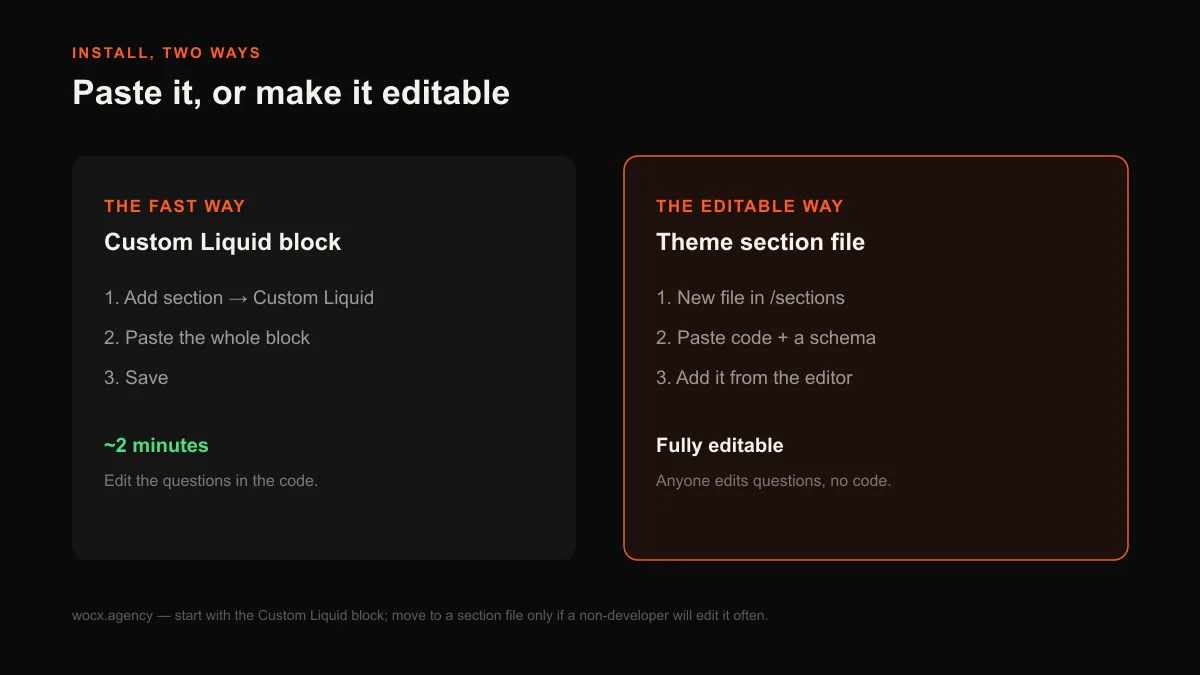
The fast way takes about 2 minutes and needs no code changes. In your Shopify admin, open the theme editor, choose Add section, and pick Custom Liquid. Paste the whole block from the design you want into the box and save. The section appears on the page immediately, and you edit the questions by editing the text inside the code. This is the right choice for most stores and most people, because it is quick, reversible, and impossible to get badly wrong.
The editable way is a real theme section file, and it is worth the extra few minutes if someone non-technical will be editing the questions regularly. Instead of pasting into a block, you create a new file in your theme’s sections folder, paste the code, and add a small schema so the theme editor shows the questions as editable fields. Then anyone can add, remove and reword questions from the editor with no code at all. If you want the full version of that route, our walkthrough of how to add a custom section to a Shopify theme covers the schema settings that make every part editable. Either way, the section itself is the same; only how you manage it changes.
How to change the questions, colours, and layout with AI
You do not need to understand the code to change it. Paste the block into any AI assistant with a plain-instruction prompt and it will edit it for you. The trick is to describe the outcome, not the code. For example:
Here is a Shopify FAQ section. Replace the placeholder questions with these five real ones and their answers: [paste your questions and answers]. Keep the accordion behaviour, change the accent colour to #1a5f4a, and make the question text a little larger. Give me back the full section code, unchanged everywhere else, using straight quotes only so it pastes into Shopify without errors.
That last line matters. Curly quotation marks are the single most common reason a pasted section breaks in Shopify, so telling the assistant to use straight quotes only keeps the result paste-safe. Ask for the whole block back, not a fragment, and paste it in the same way you pasted the original.
Write an FAQ people and AI can both use
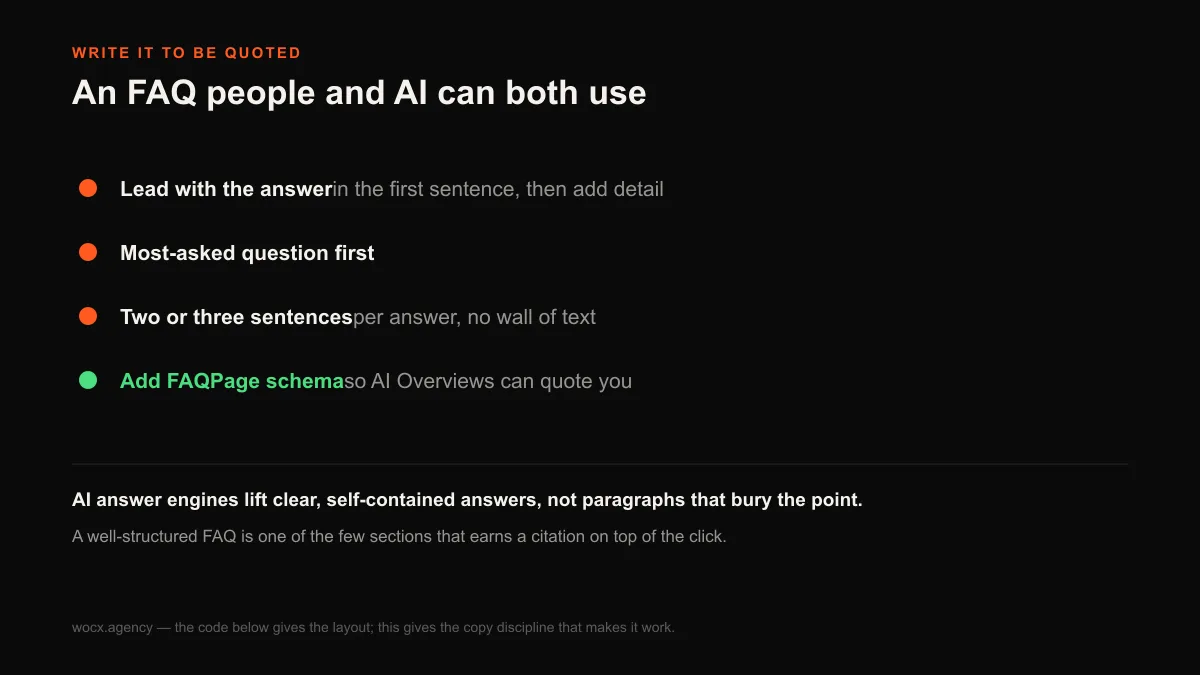
The design gives you the layout; the copy decides whether it works. The rule that matters most is to lead each answer with the answer, in the first sentence, and only then add the detail. A shopper skimming an accordion reads the first line and decides whether to keep reading, and an AI answer engine lifts that first line as the quote, so burying the answer at the end of a paragraph costs you both. Put the most-asked question first, keep each answer to 2 or 3 plain sentences, and write the questions the way a customer would actually phrase them, not the way your product manager would.
There is a technical step that pays off out of proportion to its effort: add FAQPage structured data. AI Overviews now appear on an estimated 47 to 64% of searches, up from roughly 25 to 30% a couple of years ago, and they choose which sources to quote based on how clearly a page structures its answers, not just where it ranks. A FAQ marked up with FAQPage schema is exactly the clear, self-contained question-and-answer format those systems prefer, which makes it one of the few sections on your store that can earn a citation in an AI result on top of an ordinary click. The visible questions and answers must match the marked-up ones, so keep them in sync.
What belongs in your FAQ, and what to leave out
The fastest way to weaken an FAQ is to fill it with questions no real customer asks. A good FAQ is built from the objections and doubts that actually stop people buying, which means it is mostly about shipping, returns, sizing and fit, materials and care, and the small practical worries that live between wanting a product and paying for it. If you are not sure what those are, your support inbox and your live-chat logs already have the answer: the questions people ask before they buy are the ones that belong on the page, phrased the way they phrased them.
| Put in your FAQ | Leave out |
|---|---|
| Shipping times and costs | Anything already answered right above on the page |
| Returns and exchanges | Marketing lines dressed up as a question |
| Sizing, fit and materials | Questions no real customer has ever asked |
| Warranty, care and guarantees | A wall of legal or policy text |
Keep the list tight. A FAQ with 6 sharp questions outperforms one with 20 vague ones, because every extra question you add dilutes the ones that matter and pushes the important answer further down the page. If a topic needs more than a couple of sentences, it probably deserves its own page, and the FAQ should link to it rather than swallow it. The job of the section is to remove hesitation quickly, not to document your entire policy library.
When you should not add an FAQ section
An FAQ is a fix, and sometimes it is fixing the wrong thing. If you find yourself needing five questions to explain your returns policy, the honest move is to simplify the returns policy, not to write a longer FAQ about it. A section that exists to apologise for a confusing checkout, an unclear shipping table or a vague product description is a bandage over a wound that deserves stitches, and shoppers can feel the difference between a store that answers questions and a store that generates them.
The same caution applies to the product page itself. If the same question comes up again and again, the best place for the answer is often not the FAQ at all but the product description, the shipping widget, or the buy box, where the shopper sees it without having to go looking. Treat a growing FAQ as a signal: a question that everybody asks is usually a sign that something earlier on the page is not doing its job, and moving the answer upstream converts better than burying it in an accordion at the bottom.
The FAQ section and your product page
On a product page, the FAQ is a supporting act, not the headline. It sits below the description and the reviews, catching the doubts those did not resolve, so keep the on-page version short and specific to that product: three or four questions about this item’s sizing, delivery and returns, not your whole store’s policy. The full list belongs on a dedicated FAQ page you can link to, which keeps the product page fast and focused while still giving the thorough shopper somewhere to go.
Placed well, the FAQ works with the rest of the product page rather than competing with it. The description sells the outcome, the reviews supply the proof, and the FAQ removes the last practical objection, in that order, moving a visitor from interested to confident to checked out. A store that gets that sequence right rarely needs a longer FAQ; it needs a clearer one, closer to the buy button, answering the single doubt that would otherwise cost it the sale.
Why these sections paste without breaking
Most free Shopify sections break the moment you paste them, and the reason is almost always invisible. A snippet copied out of a design tool or a document carries characters the theme editor cannot read: curly quotation marks instead of straight ones, a long dash where a plain hyphen belongs, or a stray non-breaking space between two words. You paste it, hit save, and Shopify throws a syntax error on a line that looks completely normal. Every snippet on this page has been written to avoid that, so the quotes are straight and the symbols are plain, and each one is also scoped to its own section, which means pasting it cannot restyle the rest of your store or leave an empty gap on the page.
The practical upshot is that you can copy a whole block, top to bottom, drop it in, and it renders the way you saw it in the preview. If you ever do hit an error, check that you copied the entire block rather than a partial selection, since a section cut off halfway is the one thing no cleanup can save you from. This is the same discipline we bring to every custom section we build, and it is why a section you own beats one an app rents you.
Keep it accessible and fast
A FAQ section touches two things a lot of free code gets wrong: accessibility and weight. On accessibility, the questions in these designs are real button elements, not styled divs, which means they work with a keyboard and are announced correctly by a screen reader, and each one carries an aria-expanded attribute that flips as it opens so assistive tech knows the current state. That is not decoration; a meaningful share of shoppers rely on it, and Shopify’s own themes are held to the same standard. The animation also respects the prefers-reduced-motion setting, so a visitor who has asked their device to cut motion gets an instant open instead of a slide.
On weight, these sections add almost nothing to your page. There are no external fonts to download, no icon library, and no JavaScript framework: the accordion logic is about 12 lines of plain script, and the two-column design uses none at all. That matters beyond tidiness, because page speed feeds Core Web Vitals, and a lighter page is one small part of why a store holds its rankings when an algorithm update shakes the results. An app that does the same job typically loads a bundle many times that size on every page, whether the FAQ is used or not, which is the quiet tax a native section lets you avoid.
FAQ
How do I add an FAQ section to Shopify without an app?
Open the theme editor, choose Add section, pick Custom Liquid, and paste one of the code blocks above, then save. That gives you a working FAQ in about 2 minutes with no app and no monthly fee. To make the questions editable from the theme editor by a non-developer, save the code as a theme section file with a schema instead.
What is the best FAQ layout for a Shopify store?
There is no single best layout; it depends on length. Use an accordion or bordered cards for a longer FAQ so collapsed answers keep the page short, and a two-column grid for a short FAQ of 4 to 6 questions so every answer is visible without a click. The accordion is the safest default because it handles both long and short copy well.
Where should the FAQ section go?
Put it where the hesitation is. On a product page, place a short FAQ under the description to answer buying objections at the moment of doubt; keep the full list on a dedicated FAQ page; and consider one or two questions on the homepage or a landing page for the single most common objection. An answer on the product page saves a customer who would never have visited a separate help page.
Does an FAQ section help SEO or AI search?
Yes, when it is structured well. A FAQ marked up with FAQPage schema gives AI Overviews and search engines clear, self-contained answers they can quote, which is one of the few ways a store section can earn a citation on top of a click. Lead each answer with the answer in the first sentence and keep the visible text in sync with the marked-up text.
Will pasting the code break my theme?
No. Each snippet uses straight quotes, no external fonts, and styles scoped to the section itself, so it cannot reach out and change the rest of your theme. The most common cause of a broken paste elsewhere is curly quotes; these are written to avoid that. If you hit an error, make sure you copied the whole block.
Want a FAQ section built into your theme properly, with editable questions and FAQPage schema wired in, matched to your brand? Send me your store and I will set it up. Free to ask, and usually a reply within the hour.